

Claude connector
Add Synthesia to Claude as a custom connector, then ask for a video draft or a Syren video without leaving the conversation. Make sure you meet the prerequisites first.
Choose your setup
Connect a personal account
Use these steps if your Claude account isn’t part of a company workspace.
-
Go to
Settings→Connectors, selectAdd, then selectAdd custom connector.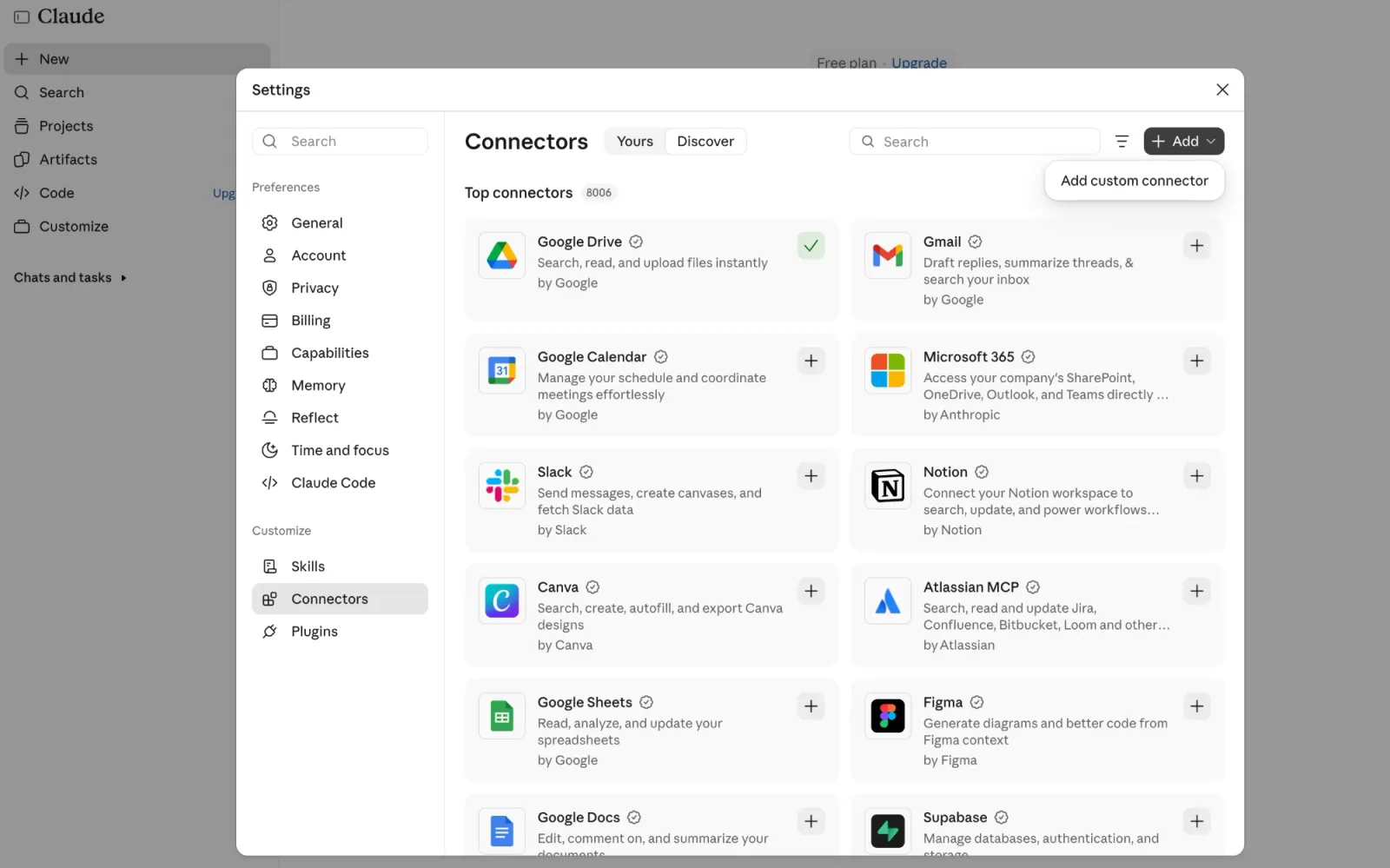
-
Enter a name and the server URL, then select
Continue: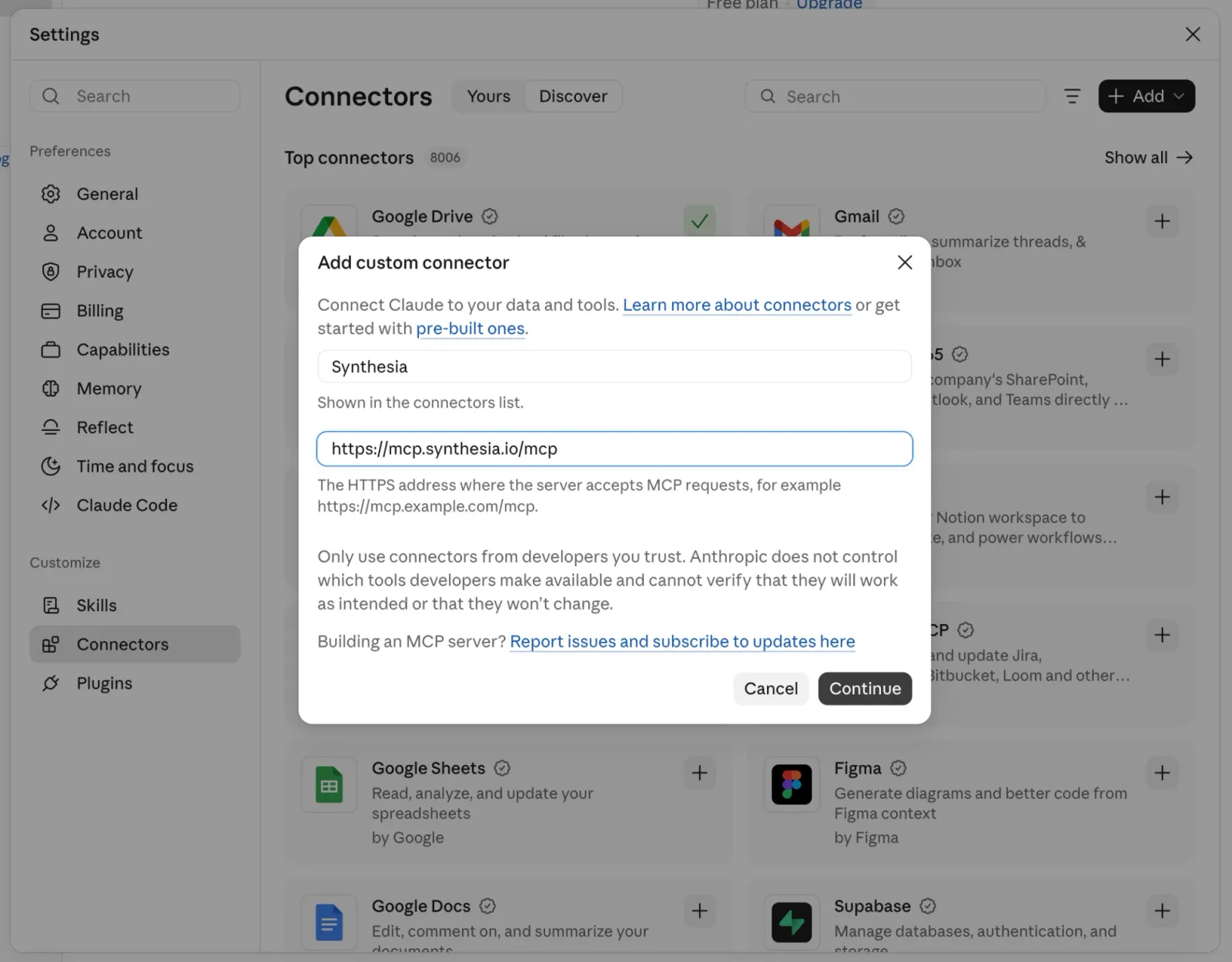
-
Keep the detected authentication options (
Sign in nowandUse Claude's published identity). Synthesia authenticates through WorkOS, so you don’t need client credentials. SelectAdd, then follow the prompts to sign in.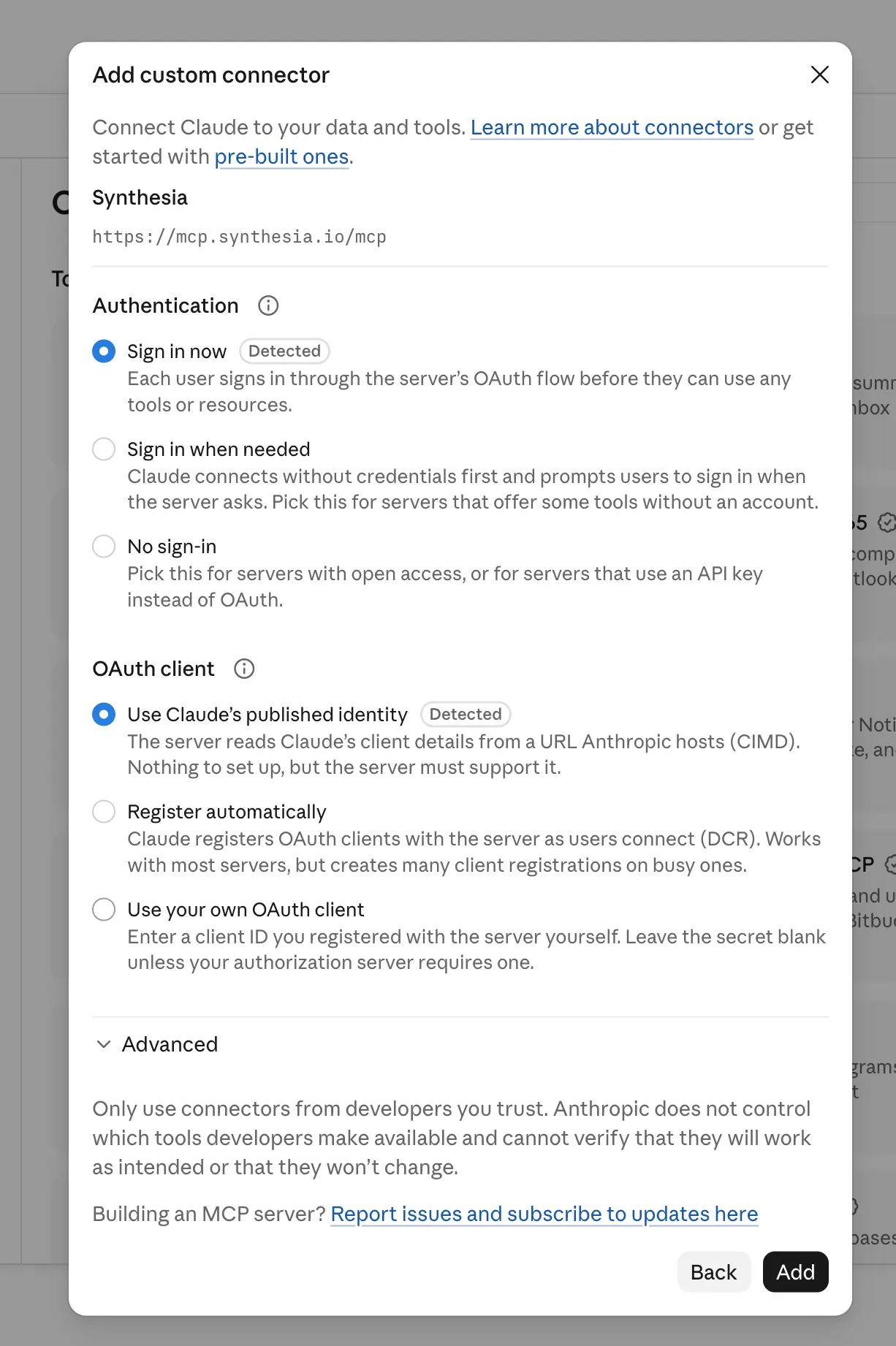
Set up for your organization
Use these steps if you’re a Team or Enterprise admin.
-
Go to
Organization settings→Connectors. -
Select
Add, hover overCustom, then selectWeb. -
Enter the server URL:
-
Leave
Advanced settings(OAuth Client ID and Secret) empty. Synthesia authenticates through WorkOS, so you don’t need client credentials.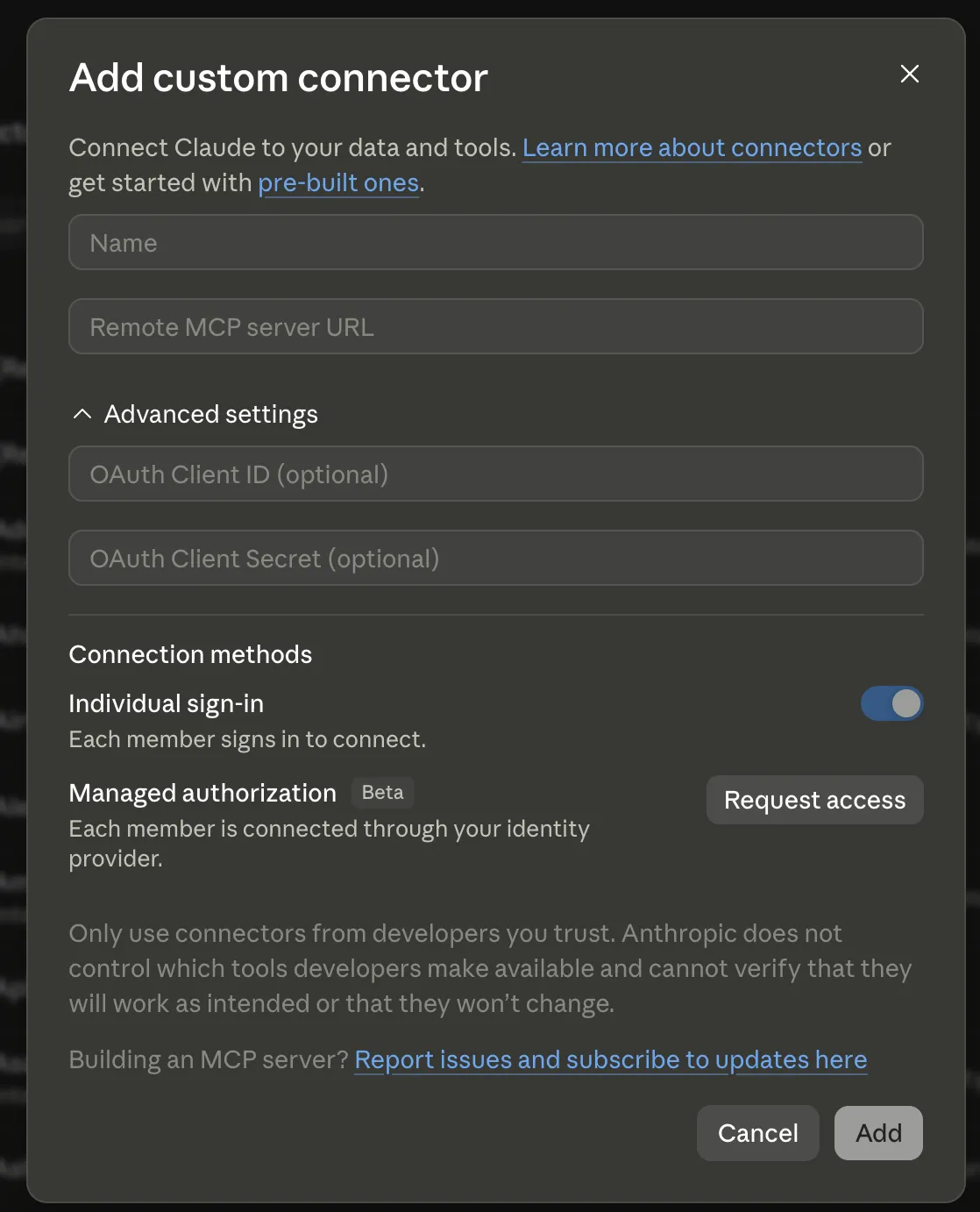
-
Select
Add.
Workspace members then connect individually. Share the workspace member steps with your team.
For more on this flow, see Anthropic’s guide to custom connectors using remote MCP.
Connect as a workspace member
Use these steps if an admin has already added Synthesia as an organization-wide connector.
- Open Claude Desktop or the Claude web app.
- Go to
Settings→Connectors. - Find Synthesia in the list of connectors (labeled
Custom) and selectConnect. - In the Synthesia window that opens, approve the permissions and sign in. Your session is cached, so you won’t be asked to approve every time.
- Confirm the Synthesia connector appears under the connectors icon in the message box.
Turn on Synthesia in a chat
- Start a new chat.
- Select the
+menu and switch onSynthesia. - Ask for a video. To create a Syren video, include “use Syren” in your prompt.
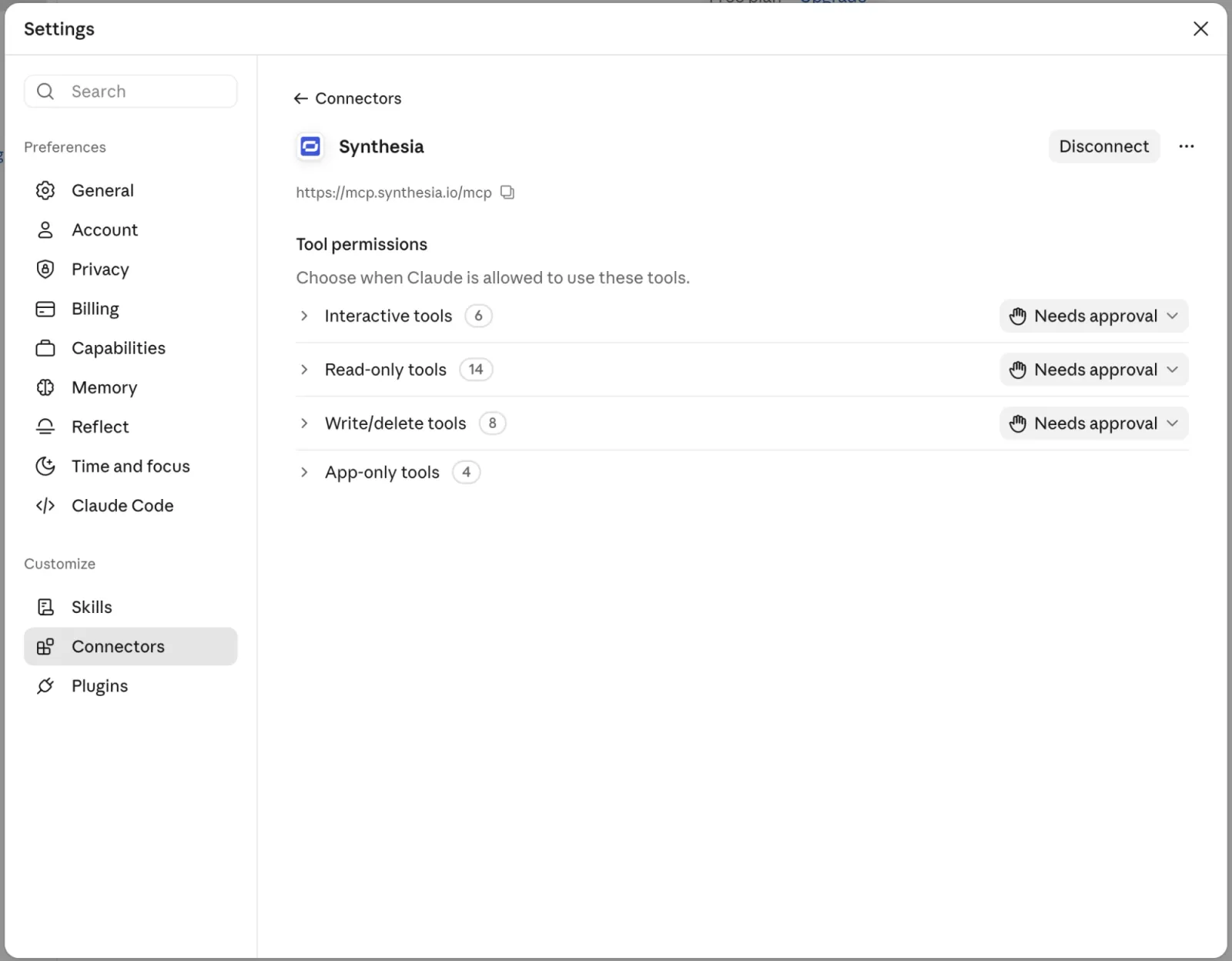
To create Syren videos, go to Settings → Connectors → Synthesia, expand each group under Tool permissions, and confirm the Syren tools aren’t set to Blocked.
Next, see Create a video draft or Create and edit a Syren video.
Refresh the connector
If we update the server’s tool list or descriptions, refresh the connector:
- Go to
Settings→Connectors→Synthesia. - Select
Refresh.
If a tool still doesn’t show up, restart the Claude desktop or web app.
On Claude’s Business plan, connectors can’t be updated after publishing. Recreate and republish the connector to pick up changes.